Showing posts with label Java Embedding. Show all posts

Wednesday, 14 September 2016

How to call a Java method inside a BPEL process using Java activity

Hi',
Inside a BPEL process we can call a Java class to use any of its methods. This helps in reusing the Java code from existing projects or sometimes doing things in Java which are still not possible in BPEL

This is a 2 step process

Create a .jar file of the Java project

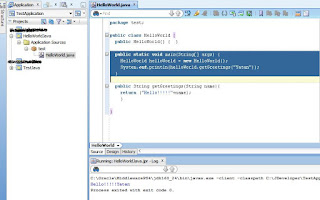
1.) Below is the screen shot of the Java class which we want to use in our BPEL process.


2.) Create a JAR file of this Java project.

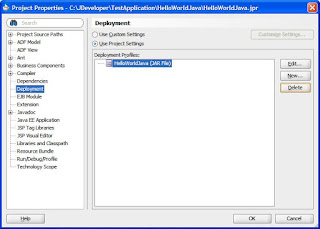
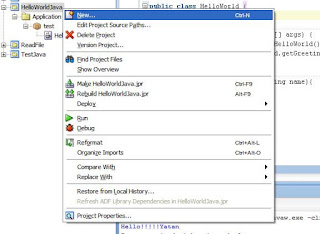
Right click on the Java project and select New

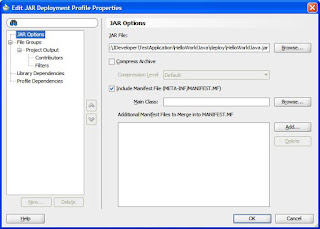
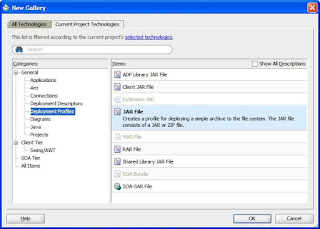
Now select the Deployment Profile under General and select JAR File under Items.


Give the Name to Jar file "HelloWorldJava"
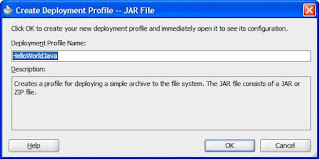


Click on OK, and then right click on the project folder and deploy it.
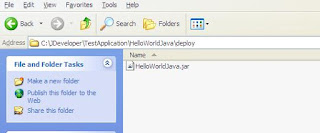
This will create a .jar file of this java project.

This HelloWorld.Jar goes inside the deploy folder of this project by default.


Use java class from the .jar file inside the BPEL process

Create a new SOA composite and drop a BPEL process inside composite.xml , Copy the HelloWorldJava.jar which we just created in the presious steps inside the Composite "SCA-INF/lib" folder.

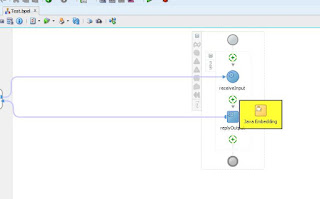
Now drop a Java Embedding activity inside the BPEL process.


Inside the Java Embedding use the below code
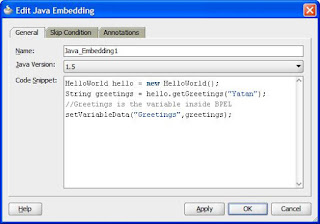


** If there is any error just typecast it to string.

We need to do 2 things here first include the Jar in the project and then use import statement to use those classes inside the BPEL

1.) To include the JAR in the project, double click on the project to open the project properties click on "Libraries and class path" now click "Add JAR/Directory.." and include the jar file which we have placed inside the SCA-INF/lib folder of the same project.

2.) Use Import statement inside the BPEL source code, inside the BPEL process we have to manually use Import statement to import the java class in order to use the class inside the BPEL.
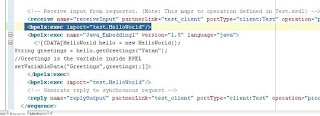


Create a new variable "Greeting" of String type, inside the Java code we are passing the output of the java method to this variable, this will bring the output of the java to BPEL process.
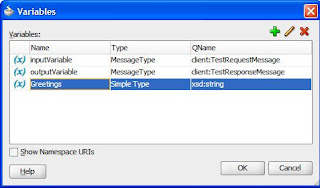


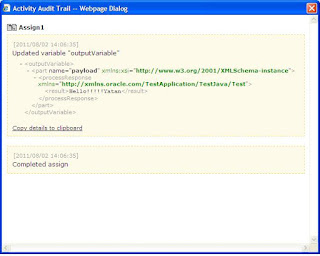
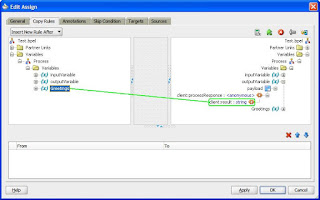
Use a Assign activity to map the Greeting variable to output variable.


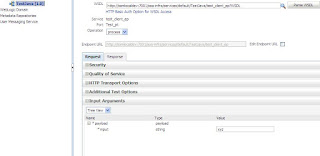
Deploy and test.
Input


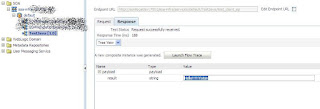
Output


Audit Flow
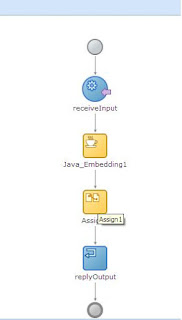


The Java activity is still not that advance to give developer error details, the exceptions thrown are very confusing, if the above steps are followed life can be little easy when Java activity is used.

Steps for using Java activity 

1.) Creating JAR from JDEV
2.) Copy the JAR in the same projects SCA-INF/lib folder
3.) Include the JAR by going to "Libraries and class path".
4.) Use Import statement inside the source code of BPEL, make sure that all the import statement are included for what ever code is written inside the java acitvity, there is change in the package structure of various existing classes which are used inside 10G and 11G
example : For Java class Base64Decoder the import statement differ in 10G and 11G

10G "com.collaxa.common.util.Base64Encoder"
11G "oracle.soa.common.util.Base64Encoder"

Java Embedding in BPEL process

Oracle BPEL has a special Activity called “Java Embedding”, that allows you to include some “inline” Java code into a BPEL process. Unfortunately, you don’t get Java type-in support in the editor behind the Java Embedding activity, which makes coding a lot more difficult. Furthermore, it is not straightforward to find out what kind of methods are available for you to invoke. When I recently had to use a Java Embedding myself, I found a way to work around this and learned some interesting things about the methods available to you when writing embedded Java code into a BPEL process.
For starters, to find out where my embedded code ends up at runtime, I put the following, simple statement in a “Java Embedding”:
System.out.println(“Java Embedding superclass: “+this.getClass().getSuperclass().getName());
This told me that the class that the BPEL compiler creates for this Java embedding extends “com.collaxa.cube.engine.ext.BPELXExecLet“, which can be found in orabpel.jar. This is an abstract class, with an abstract “execute()” method, and the code in this method is the code that you provide in the Java Embedding editor. Unfortunately, there is no Javadoc available for this class but there is Javadoc for its superclass (BaseBPELExecLet, click on the link to see the Javadoc).
With this knowledge, it is easy to create a temporary Java class where we can create the code for the Java Embedding activity with full type-in support. My advice would be to create it in a separate JDeveloper project. Add the “BPM Workflow” library to it (Project Properties => Libraries), and create a new Java class that extends the BPELXExecLet class. You’ll need to implement the abstract “execute” method, and here you can create your Java code with full type-in support. When you’re done, you can copy-paste the logic inside the execute method to the editor of the Java Embedding in your BPEL process. There is only one caveat: when your typing code you should not use Alt-Enter to create imports in your Java class; you should always use fully qualified class names or the BPEL compilation process will fail later.
Using type-in support (type this. and wait for a while or press CTRL-space if you are in a hurry, or CTRL-ALT-space if you are in a hurry _and_ want only smart suggestions), a number of interesting methods appear which can be invoked from your code. Some especially useful methods that I have used in the past are:
  • checkpoint(): forces dehydration.
  • setIndex(int i, String s):  stores the value of String s in CI_INDEXES, a table in the dehydration store with the current instance id as PK, and six “index” columns in which you can store data. Typically used to enable you to correlate a unique key for the process in the user domain with the technical BPEL instance ID, for track&trace purposes.
  • getVariableData(): equivalent of bpws:getVariableData() in BPEL process, gives access to any data in the BPEL process
  • setVariableData(): equivalent of bpws:setVariableData() in BPEL process, allows you to change any data in the BPEL process
  • addAuditTrailEntry(): puts a log message in the Audit trail
  • getInstanceId(): gets the current instance id
  • getParentId(): gets the instance id of the BPEL process which invoked the current process
  • getRootId(): gets the instance id of the first BPEL process in the calling chain
  • getPreference(): gives access to descriptor properties.
But this is just a brief summary,  there are many more methods you can invoke. One last method at your disposal that is very powerful is: getLocator(). With the com.oracle.bpel.client.Locator this method returns, you get access to pretty much anything in the BPEL Domain, and one thing you might want to do is to get access to the current BPEL process instance. I ran across this situation where I needed the name of the BPEL process to which the current instance belonged, and although many attributes of the current instance are available through methods in the BPELXExecLet superclass, the ProcessId is not one of them.
The code to obtain a handle to the current BPEL instance using the Locator would look something like this:
      String instanceId = Long.toString(this.getInstanceId());
      // Define variables to use;
      com.oracle.bpel.client.IInstanceHandle instance;
      com.oracle.bpel.client.IInstanceHandle[] instances;
      com.oracle.bpel.client.util.WhereCondition cond;
      
      // Set the whereclause
      cond = new com.oracle.bpel.client.util.WhereCondition"cikey = ?" );    
      cond.setLong(1this.getInstanceId());  
      
      // Perform the query using the Locator
      instances = this.getLocator().listInstances(cond);  
      instance = instances[0];
      
      // Store the name of the BPEL process in the CI_INDEXES table
      setIndex(1, instance.getProcess().getProcessId().toString());
Unfortunately, the code above will fail to find the instance if it has not yet been persisted to the dehydration store. Of course, a call tothis.checkpoint();  at the beginning of this code could easily fix that, but this has performance implications.
While trying to find a solution to this problem, I had a feeling that since so much attributes of the current instance _are_ available through superclass methods, it should be possible to obtain the current process instance without performing a query through the Locator. With this in mind, I came across yet another intriguing method in the BPELXExecLet class: getFromEnvironment(String key). Some debugging code later I had found my answer: when using the key “__cube-instance”, I could obtain an instance ofcom.collaxa.cube.engine.core.ICubeInstance, which allowed me access to the ProcessId I needed:
      com.collaxa.cube.engine.core.ICubeInstance instance;  
      instance = (com.collaxa.cube.engine.core.ICubeInstance)getFromEnvironment("__cube-instance");       
      setIndex(1,instance.getProcessId())
Shorter, better performance because 1.) no query needed and 2.) no (additional) dehydration needed, so as long as they don’t change that funky key this’ll do nicely ðŸ˜‰
This last bit was specific to one particular problem I had to solve recently, but I hope that the first part of this post contains some information that might be of value when you create your own Java Embeddings in a BPEL process.

Developing and deploying Java Embedding activity in BPEL 2.0 in SOA Suite 11g calling a custom Java Class that has dependencies on 3rd party libraries

Java Embedded activity can call a custom Java class that relies on 3rd party Java libraries. This means that a lot of existing functionality from the Java open source community is at the disposal of the BPEL developer. This article shows a simple example of developing and deploying a BPEL process that uses Java Embedded Activity that calls a custom Java Class that uses Apache HttpClient to make Http POST calls. The article demonstrates how to develop the BPEL process, the Java Embedded activity, Java Class and how to deploy the SOA Composite application. It also presents the results of running the composite application.
Steps for a simple, straightforward demonstration:
1. Create SOA Composite application in JDeveloper 11g – based on the BPEL template
Image
Image
Image
2. Create the directory Application_Root\project\SCA-INF\lib
3. Copy 3rd party libraries to the directory created in the previous step
Image
4. Create the custom Java Class – in the SCA-INF\src directory
Image
1
2
3
4
5
6
7
8
9
10
11
12
13
14
15
16
17
18
19
20
21
22
23
24
25
26
27
28
29
30
31
32
33
34
35
36
37
38
39
40
41
42
43
44
45
46
47
48
49
50
51
52
53
54
55
56
57
58
59
package nl.amis.util;
import java.io.BufferedReader;
import java.io.IOException;
import java.io.InputStreamReader;
import java.io.UnsupportedEncodingException;
import org.apache.http.HttpResponse;
import org.apache.http.client.methods.HttpPost;
import org.apache.http.entity.StringEntity;
import org.apache.http.impl.client.DefaultHttpClient;
public class HttpPoster {
  public static String postMessageToUrl(String url, String message) {
      DefaultHttpClient httpClient = new DefaultHttpClient();
      String response;
        try {
            response = postToURL(url, message, httpClient);
        } catch (UnsupportedEncodingException e) { response = e.getMessage();
        } catch (IOException e) {
            response = e.getMessage();
        }catch (RuntimeException e) {
            response = e.getMessage();
        }
        httpClient.getConnectionManager().shutdown();
       return response;
  }
  private static String postToURL(String url, String message, DefaultHttpClient httpClient) throws IOException, IllegalStateException, UnsupportedEncodingException, RuntimeException {
      HttpPost postRequest = new HttpPost(url);
      StringEntity input = new StringEntity(message);
      input.setContentType("application/json");
      postRequest.setEntity(input);
      HttpResponse response = httpClient.execute(postRequest);
      if (response.getStatusLine().getStatusCode() != 200) {
          throw new RuntimeException("Failed : HTTP error code : "
                  + response.getStatusLine().getStatusCode());
      }
      BufferedReader br = new BufferedReader(
              new InputStreamReader((response.getEntity().getContent())));
      String output;
      StringBuffer totalOutput = new StringBuffer();
      System.out.println("Output from Server .... \n");
      while ((output = br.readLine()) != null) {
          System.out.println(output);
          totalOutput.append(output);
      }
      return totalOutput.toString();
  }
}
5. Add the 3rd party library JARs to the project definition in JDeveloper:
Image
6. Create the Java Embedding activity in the BPEL process
Image
7. (optionally rename the activity) and Double click the activity to start editing the Java snippet
Image
Image
1
2
3
4
5
6
7
String input = ((XMLText)getVariableData("inputVariable", "payload", "/client:process/client:input/text()")).getText();
System.out.println("Hello, World from BPEL with Java Embedded - input = "+input);
String message = "Message from BPEL process instance, invoked with input variable with value "+input;
String response = HttpPoster.postMessageToUrl(url, message);
System.out.println("response after posting message to url "+url+" is "+response);
setVariableData("outputVariable", "payload", "/client:processResponse/client:result", response);
8. Add import statements for the non-JKD classes used in the Java snippet
Image
9. Deploy the SOA Composite applications.
Note: all Java classes in SCA-INF/src and all JAR files in SCA-INF/lib are included in the SAR:
Image
10. Test-run the BPEL process through its Web Service interface
The Java snippet reads an input variable, writes some logging to the console, passes the value of the input variable to the custom Java class that performs an HTTP POST request (handled by an extremely simple Servlet that does nothing but write the request contents to the console and return a standard response). This response is put on the outputVariable by the Java snippet.
When making this call to the BPEL process:
Image
This output is found in the SOA Suite console:
Image
And the output from the Servlet is
Image
Finally the response from the BPEL process – including the response from servlet invoked by the Java snippet: